Learn how to scan a QR code that you see on your iPhone or Android phone.
Updated May 17, 2025.Published May 13, 2025.
Every day, people see QR codes on their Android phones and iPhones that they would like to scan to visit websites, but they do not know how to scan them with the same phones. The good news is that it can be done.
Scanning QR codes by using Google Lens on an iPhone or Android phone.

In order to scan a QR code that you see on your iPhone or Android phone, take a screenshot of the screen, tap on the Google Lens icon, tap on the image icon, tap on the image that has the QR code, and then tap on the URL at the top of the QR code. See the video below that shows how to do it on an Android phone:
QR code scanning by using Google Lens
Scanning QR codes by using the Android phone app.
Let us assume that you are on YouTube and want to scan the QR code on the page to the left. The QR code contains the link to the Pac-Man game.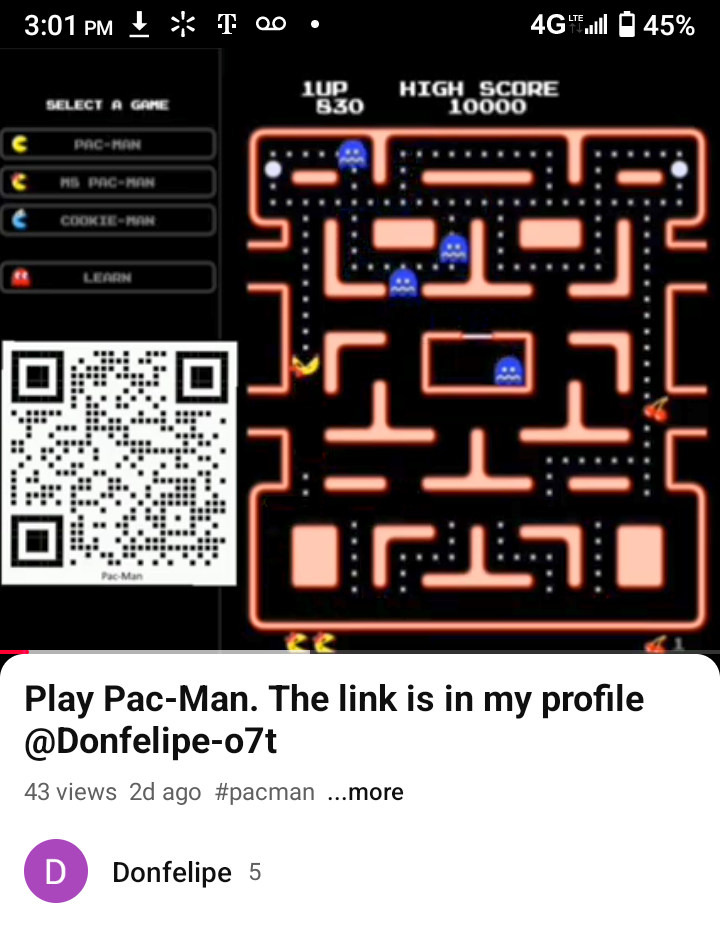
Android devices running the Android 9 operating system and above have built-in QR code scanning capabilities within their camera apps. Follow the instructions:
1. Take a screenshot of the YouTube screen.
2. Exit YouTube and go to the default Android camera app, which is the camera app that came with your phone. Navigate to the QR code scanning feature that is integrated directly into the camera app. It should be located under the “More” option. Tap on the "More" option.

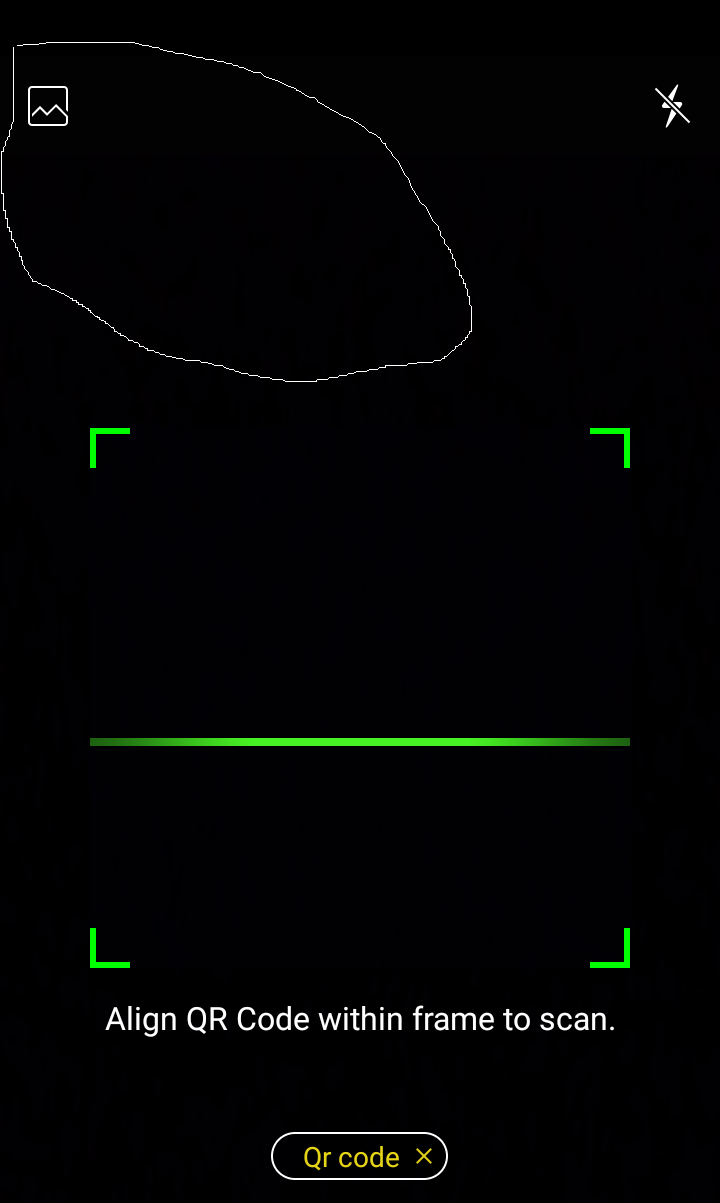
3. Tap the QR code icon; the QR code screen will display, and you should see the message “Align QR Code within frame to scan.”
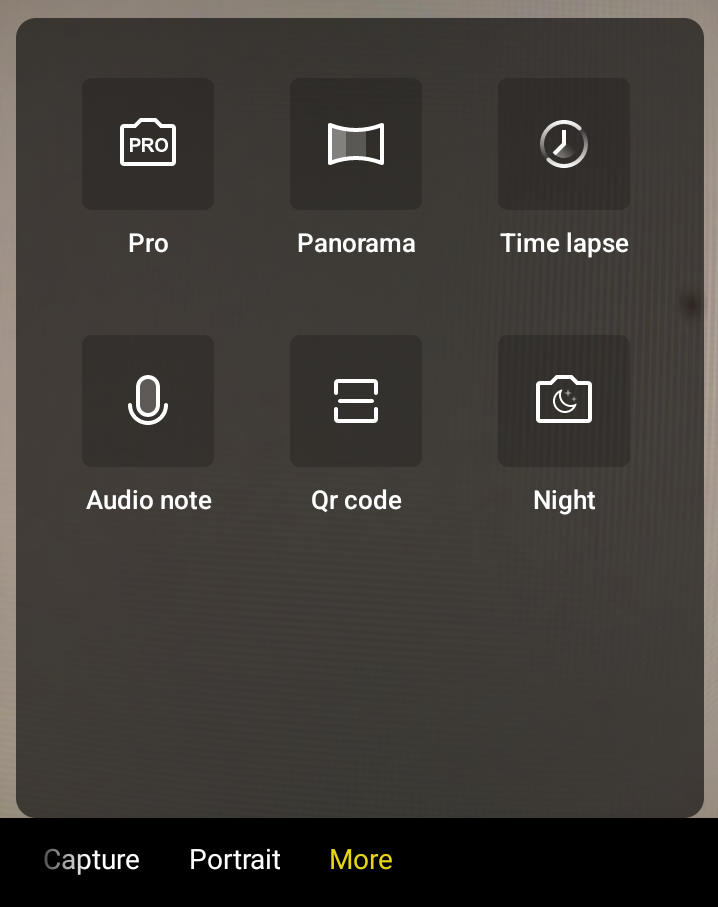
4. Tap the image icon in the top-left corner of the screen to go to the "Recent" images screen.
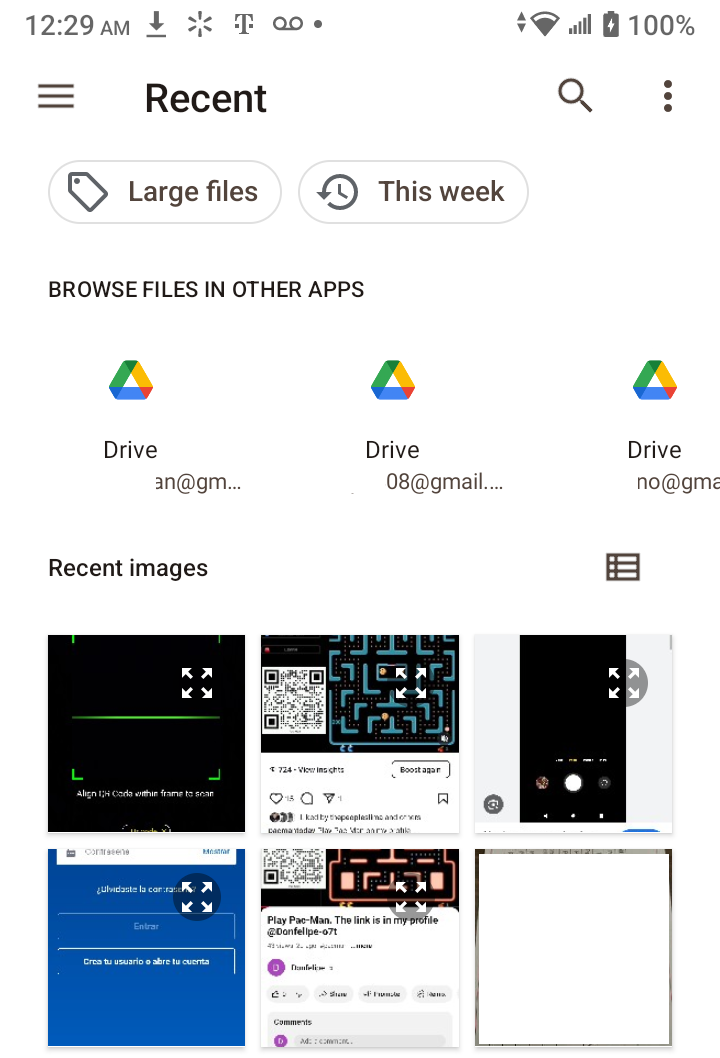
5. The “Recent” images screen should look similar to the screen below, but not exactly. Tap the image that has the QR code for the Pac-Man game (but do not tap on the “Four Corners Arrows Line” icon in the image because the “Open with Photos” screen will be displayed). Then, a screen with the recent images of your files will be displayed, and you should see a screen with the title “Scan result” displaying the URL of the page with the Pac-Man game
6. Tap on “GO TO LINK,” and the page with the Pac-Man game will be displayed.

NOTE: If you mistakenly tap on the “Four Corners Arrows Line icon” and are sent to the “Open with Photos” screen, simply click on the left arrow to return to the screen with the images and tap on the desired image without making the same mistake.
A QR code, short for Quick Response code, is a two-dimensional barcode that stores information in a square grid of black and white pixels. When scanned with a smartphone or other device, it can rapidly decode and transmit the information, which can include website URLs, text, contact details, or other data.
In 1994, Masahiro Hara, an employee of a Japanese automotive company named Denso Wave, envisioned the idea of QR codes while playing the game Go. Go is a two-player board game of strategy where players take turns placing black and white stones on the intersections of a grid. The goal is to control more territory on the board by surrounding empty intersections with your stones.
QR Code News
- I thought QR codes were stupid, but this Home Assistant automation proved me wrong - How-To Geek
- Bill replacing inspection sticker with QR code passes Louisiana House - WBRZ
- Fake QR codes make for easy scams – be careful what you scan out there - The Conversation
- Snapchat makes a push for Snapcodes as a marketing tool - Social Media Today
- Capitol Access Minute: Inspection stickers to transition to QR codes legislation advances - WWNO
- A QR Code Too Small to See Hints at a New, Non-Annoying Use for the Format - Gizmodo
- Google Messages for web removing QR code pairing - 9to5Google
- World's smallest QR code, smaller than bacteria, could store data for centuries - ScienceDaily
- Traffic violation scams switch to QR codes in new phishing texts - BleepingComputer
- Kansas City company using QR code hunt to guide World Cup visitors beyond usual hotspots - KCTV
- Traffic violation text scams are evolving with QR codes - Mashable
- Georgia election officials raise concerns over QR code ballot ban deadline - WTOC
- How to scan a QR code - Springfield News-Sun
- Why Some Bar Operators Are Voicing Concerns About QR Code Ordering | - Restaurant Technology News
- New QR code system lets residents report overflowing trash cans in downtown Toledo - wtol.com
- Bill to replace vehicle inspection stickers with QR codes passes Louisiana House, goes to Senate for approval - louisianaradionetwork.com
- Fulton Police Department warns of QR code scam in mid-Missouri - KOMU 8
- Capitol Access Minute: Inspection stickers to transition to QR codes legislation advances - KRVS Radio Acadie
- SCAM ALERT: Don’t Scan QR Code That Comes with a ‘Free Gift’ - Pagosa Daily Post
- Cincinnati Metro launches new bus sign project with QR codes, braille - WLWT
- Denver Alamo Drafthouse union strikes against QR code ordering - Denverite
- Shaping impact of new train tracks on local estuary is one QR code away - Santa Maria Sun
- The FBI Warns Americans To Avoid Scanning These QR Codes - bgr.com
- Inspection Stickers Could Be Going Away - 96.5 KPEL
- El Paso airport launches AI-powered parking system with Metropolis partnership - KFOX
- 8 Best API-Enabled QR Code Generators for Developers 2026 - openPR.com
- QR Codes Drive Customer Engagement and Sales for Brands From Kraft Heinz to Marriott - U.S. Chamber of Commerce
- Is it time to scrape off ‘hated’ Louisiana vehicle inspection sticker? - New Orleans CityBusiness
- Georgia lawmakers leave election officials in limbo for November - Savannah Morning News
- 7 Free QR Code Generators With Logo Customization in 2026 - openPR.com
- How eClinicalWorks is Using QR Codes to Digitize Patient Intake - HIT Consultant
Barcode News
- Vaccine 2D Barcode: Scanning Initiatives - Centers for Disease Control and Prevention | CDC (.gov)
- Scientists map the brain’s hidden wiring using RNA barcodes in major breakthrough - ScienceDaily
- Defendant Accused Of Swapping Barcodes In Series Of Four Felony Walmart Thefts - NEA Report
- Fake QR codes make for easy scams – be careful what you scan out there - The Conversation
- EU to Replace Schengen Visa Sticker with Digital Barcode by 2028 - FTN news
- Vaccines: Shipping with 2D Barcodes - Centers for Disease Control and Prevention | CDC (.gov)
- EC given 15 days for ballot barcode case - Bangkok Post
- BARCODE Efficiency Act Brings Overdue Modernization to the IRS - Americans for Tax Reform
- Cheese Recalled From Major Grocery Chains In Michigan For E. Coli - WKFR
- RNA barcoding maps neural connections with unprecedented resolution - News-Medical
- Cheese sold at major retailers recalled after E. coli outbreak sickens 9 - Syracuse.com
- BARCODE: high throughput screening and analysis of soft active materials - Nature
- Barcode Nails Are the Latest South Korean Trend Taking Over Our Feeds - Allure
- Padded Seat Review | BarCode Hospitality Available for Harrogate Town Clash - Newport County
- Barcode changes are coming. SmartLabel wants grocers to be ready. - Grocery Dive
- Barcode milestone: A special saw palmetto specimen - Florida Museum of Natural History
- Dosa: A method to covalently barcode proteins for high-throughput biochemistry - PNAS
- Vaccine 2D Barcoding for Manufacturers - Centers for Disease Control and Prevention | CDC (.gov)
- Connectome-seq: high-throughput mapping of neuronal connectivity at single-synapse resolution via barcode sequencing - Nature
- Spatial fluorescence barcode by transiently luminescent DNA beads - Nature
- Check Your Fridge: Cheese Recalled After 9 People Sickened by E. Coli - Real Simple
- Why You Should Always Take a Photo of Your Passport Barcode Before Any Trip - Travel + Leisure
- House lawmakers renew IRS push to digitize paper returns - FedScoop
- Charting single-cell lineages with synthetic and natural barcodes - Nature
- How a New Fridge With Built-In Barcode Scanner Could Change Grocery Shopping Forever - CNET
- Barcode errors ‘potentially fatal’, warns patient safety commissioner - The Pharmaceutical Journal
- Barcode Nails Are the Coolest Cat-Eye Trend to Try for Spring - Yahoo
- From Compliance to Competitive Advantage: Maximizing 2D Barcode Impact Ahead of Sunrise 2027 - Retail TouchPoints
- A DNA Barcode Reference Library of Native Seed Plants in Chinese Dryland Regions - Nature
- Are You Missing that Creationist Barcode? Me Too! - TheHumanist.com
- End of the line for supermarket barcodes - The Telegraph
Cellphone News
- Maine budget calls for statewide 'bell-to-bell' cellphone ban in schools - WGME
- Cellphone data, radio records revealed JSO officers weren’t on the job when they were claiming overtime: arrest reports - News4JAX
- State says NEISD trustees violated law over cellphone ban, seeks conservator - San Antonio Express-News
- Cellphones will be banned in Maine schools this fall - Bangor Daily News
- Cellphone video shows LAPD officers shooting man in back in South Los Angeles, family says - ABC7 Los Angeles
- Masters 2026: Former major winner reportedly kicked off Augusta National property for having a cell phone - Yahoo Sports
- Major Champion Ejected From Masters for Using Cell Phone - Sports Illustrated
- Are phones allowed at the Masters? Inside Augusta National's strict policy - USA Today
- When my kids got their first phones at 10, I made them sign a physical contract. They're teenagers now, and it's still binding. - Business Insider
- We collected data on how 779 Michigan school districts are regulating student cellphones − here are the trends - The Conversation
- Dear Doctor: Is my cellphone frequency somehow causing this very specific nipple pain? - Syracuse.com
- Failing the Fix (2026) - PIRG
- Who Gets to Have Their Cell Phone at The Masters? - Front Office Sports
- New Virginia laws target school construction and classroom cellphone use - Virginia Mercury
- All Mexico Cellphone Users Must Register by June 30, 2026 - Mexperience
- This Tour pro’s caddie used a cellphone mid-round. Is that legal? - GOLF.com
- New Alabama shark attack cellphone alerts begin Monday - fox10tv.com
- New Maine Budget Calls For Cellphone Ban in All Schools - WJBQ
- Mass. House passes school phone, social media bill - WCVB
- TEA appoints conservator amid ongoing stalemate with North East ISD over cellphone policy - kens5.com
- Masters phone policy gets Mark Calcavecchia booted from Augusta National - Golfweek
- Where will students’ cell phones be kept once school starts in the fall? - Colorado Public Radio
- Mass. House set to vote on bill to ban cellphones in schools, limit teen social media use - WBUR
- TEA recommends conservator to oversee NEISD’s cellphone policy - KSAT
- Why cell phones aren't allowed at Augusta National — and how rule got former Masters star ejected - Yahoo Sports
- Northampton resident pushing for school cellphone ban welcomes new social media bill OK'd by House - Daily Hampshire Gazette
- Reps. Linting, Thompson: Less cellphone use in school will lead to better outcomes for students - Michigan House Republicans
- 'Intentional noncompliance': TEA appoints conservator amid ongoing stalemate with North East ISD over cellphone policy - kens5.com
- New Alabama shark attack cellphone alerts begin April 13 - fox10tv.com
- RUSD Agrees To Pay Nearly $1M To Relocate Cellphone Tower - The Riverside Record
- Mass. lawmakers pass bill prohibiting children under 14 from social media, cell phones in school - Boston 25 News
